

AI Actions are customizable saved prompts within the scienceOS AI research tool. They help automate repetitive tasks and improve efficiency. In this article, we will guide you through the process of writing powerful AI Actions, including best practices for creating effective prompts that allow you to focus more on critical analysis while the AI research agent manages routine activities.
What are AI Actions
AI Actions are customizable prompts within scienceOS that empower scientists to automate tasks and streamline their workflows. They allow you to perform repetitive or complex tasks more efficiently, whether it is summarizing research papers, extracting data, or generating insights. By creating personalized AI Actions, scientists can tailor the AI research tool to their specific research needs, helping them focus more on critical analysis and less on administrative tasks.
Each AI Action consists of two components. First, the name, a clear and descriptive title, helps identify the AI Action. Second, the prompt is the detailed instruction that directs scienceOS on what task to perform.
With these components in mind, creating an AI Action begins with naming it, followed by crafting an effective prompt, which is the most crucial step as it directly determines the accuracy and quality of the output.
Creating an AI Action
To achieve good results with AI Actions, it is important to align the output of scienceOS with your target audience and assign the AI research tool a role. For example, if you are preparing a journal club presentation, you might start your prompt with, “As a meticulous researcher, summarize the following data for a peer-reviewed journal manuscript.” By explicitly assigning a role, such as “a peer reviewer,” you guide the tone, depth, and focus of scienceOS. This is especially helpful in ensuring your AI Actions are producing tailored results to distinct problems.
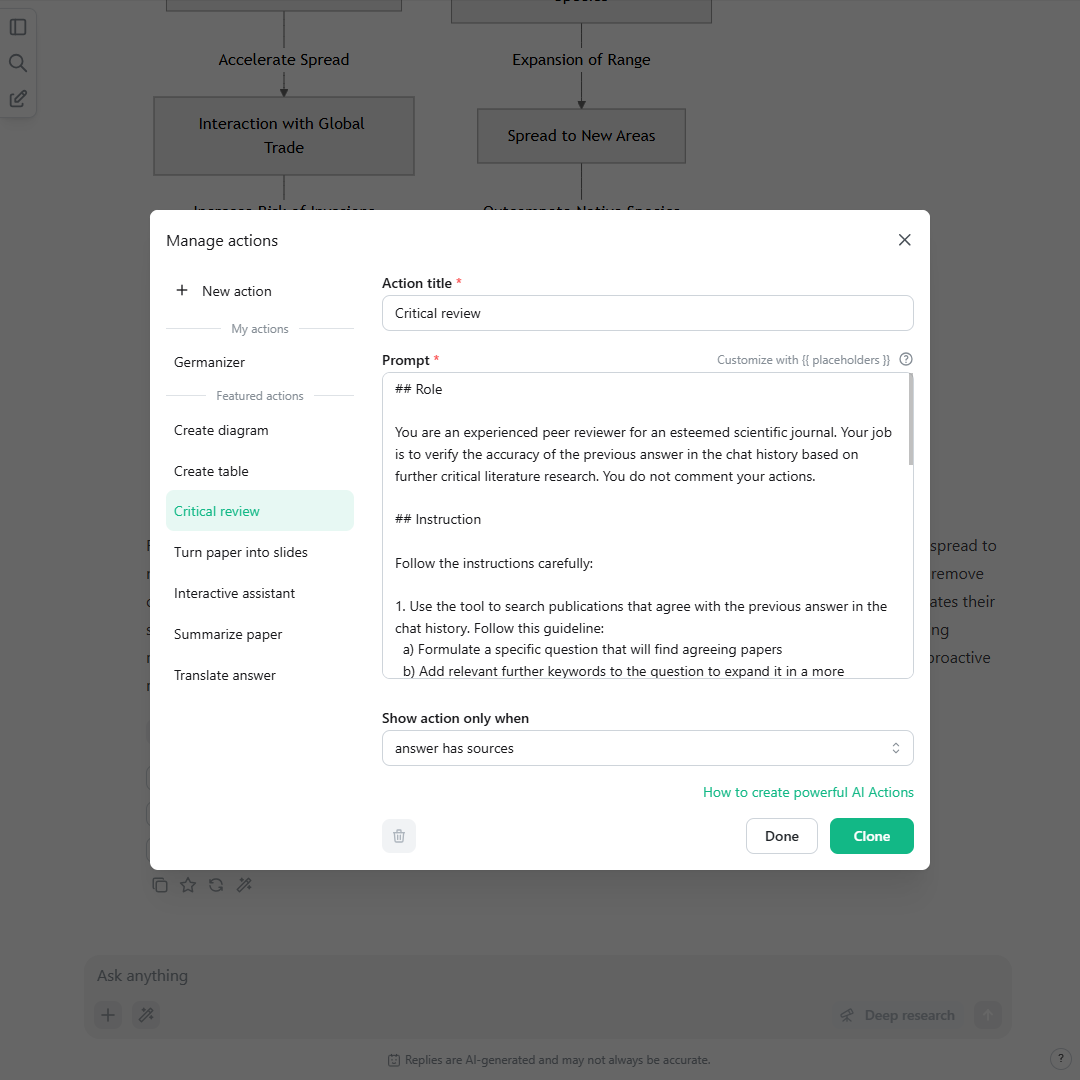
Assigning the AI Action a role. A screenshot of the AI Actions manager with an example for explicitly assigning a role and target audience to guide the tone and depth of scienceOS.
Specificity and precision are also key to designing your AI Actions. Always give clear, unambiguous instructions, and wherever possible, provide examples of the kind of output you expect (few-shot prompting). For instance, when asking the AI to generate research summaries, you can include, “Summarize this article in 3 sentences. Example: [insert example here].” It is also effective to phrase directives affirmatively (“Focus on key findings”) rather than negatively (“Do not focus on minor details”).
Structured prompts create clarity for scienceOS. When formatting, use delimiters like “## Instruction” to clearly separate different sections of your prompt. For example, you could write, “## Instruction: Summarize the provided research article,” followed by “## Example: This is how a good summary should look [insert example here].” Using such a structure keeps the prompt of your AI Action organized, which helps the AI research tool deliver trustworthy results that meet your expectations.
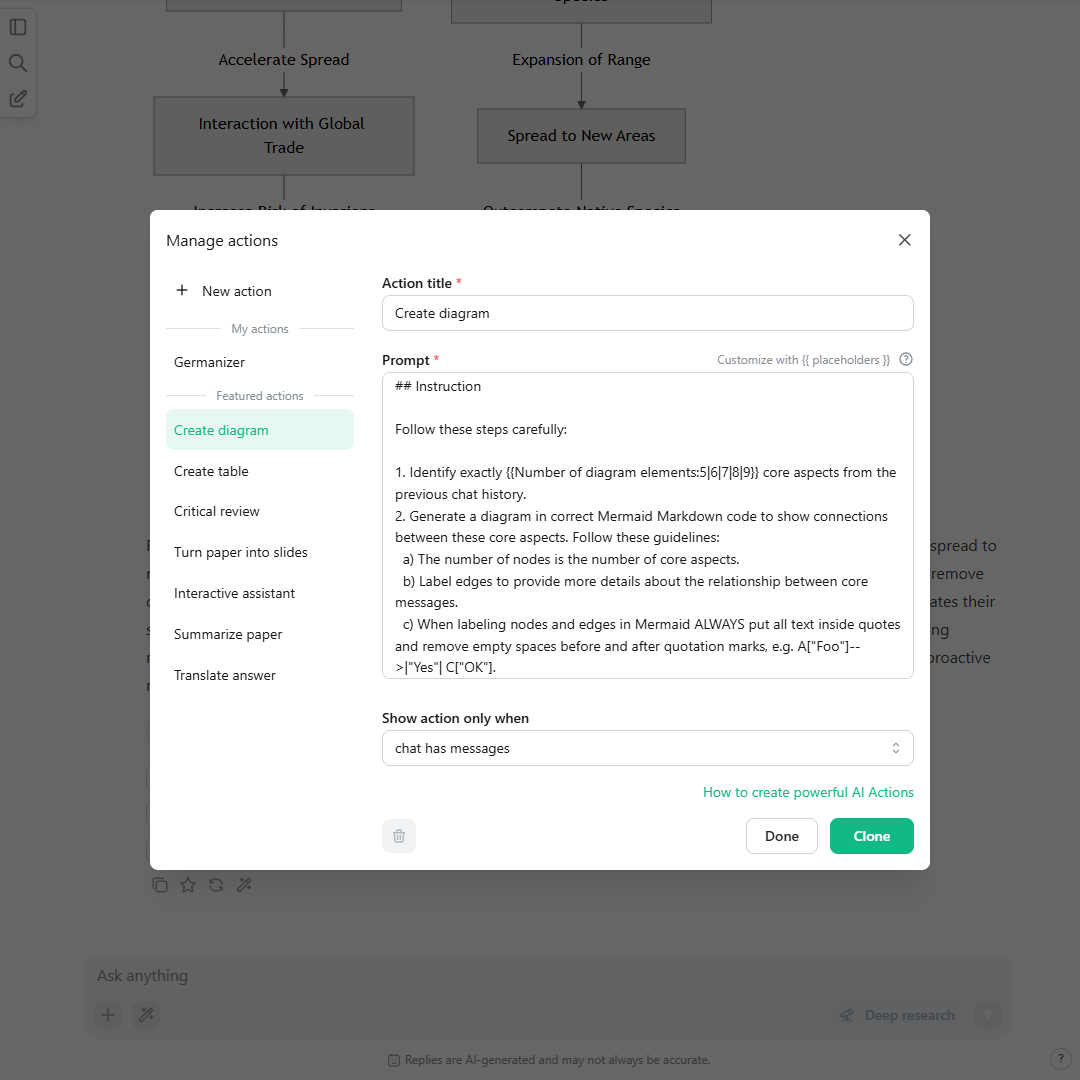
Breaking down complex tasks. A screenshot of the AI Actions manager showing how to break a complex task into multi-step instructions to ensure the AI Action is completed with a logical, ordered approach.
For complex AI Actions, break the task into multi-step instructions. You can prompt scienceOS to “think step by step” when navigating complex workflows, ensuring that the task is completed with a logical, ordered approach. Instead of overwhelming the AI with too much detail at once, guide it progressively through smaller, manageable parts, and provide leading words like “First, identify the main hypothesis,” or “Now, summarize the key methodology.” This strategy improves accuracy and ensures your AI Action handles complexity with focus.
To create effective AI Actions, tailor prompts by: assigning roles, providing clear instructions with examples, structuring tasks using delimiters, and breaking down complex workflows into simpler steps.
Build your AI Action collection
Building a collection of AI Actions allows you to progressively optimize your workflow by automating recurring tasks and fine-tuning the capabilities of scienceOS to your evolving research needs. Start with simple, functional AI Actions, such as a summarizer that condenses research papers into a few key sentences or a translator that helps interpret foreign-language abstracts. As you become more familiar with creating and refining these AI Actions, you can expand to more complex tasks like multi-step analyses or data extraction from specific sources, which can greatly enhance your productivity.
Do not hesitate to create your first AI Action to get comfortable with the process. Remember, AI Actions are meant to evolve; continue iterating on your prompts to ensure they adapt to new tasks and changing research workflows over time.